

Laptops slow with time due to clutter, bloatware, and wear but selective tweaks will bring snappy performance without upgrades. Free utilities and practices recover speed and years of life on the device. These steps should be taken in order to achieve a visible improvement in boot times, application launches, and multi-tasking.
Clear Storage Clutter Ruthlessly
Everything is throttled with full drives. Aim for 20-30% free space. Clean up Run Disk Cleanup (Windows) or Storage Management (Mac) to remove temps, caches, and recyclers. Uninstall unnecessary applications through Settings Apps. Transfer files to other drives or cloud services- Google Drive or OneDrive transfers videos/photos immediately. Clear browser caches on a weekly basis; extensions such as CCleaner are automated. Outcome: 20-50% faster file access, less swap usage.
Manage Startup Programs Aggressively

Boot delays are caused by auto-loaders. Windows Task Manager (Ctrl+Shift+Esc > Startup) can be used to disable that which is not necessary, such as Spotify or Adobe updater- right-click, Disable. Mac Activity Monitor >Login Items removes extras. Only antivirus and drivers should be limited, which saves 30-60 seconds on startup. Such tools as Autoruns (advanced) expose undercover culprits.
Update Software and Drivers Systematically
Outdated code drags. Turn on automatic updates in windows update/ windows settings/General or Mac system settings/ Software update. Check GPU drivers manually through NVIDIA/AMD/Intel applications- game-ready versions are 1520 percent faster. Extensions can be updated through chrome extensions. Memory leaks are patched, slow downs are avoided by doing monthly checks.
Optimize RAM and Virtual Memory
Close apps/tabs beasts, Chrome only consumes gigabytes. Kill hogs (End Task/Force Quit) using Task Manager/Activity Monitor. Windows: adjust the virtual memory in System Properties, Advanced, Performance, Virtual Memory 1.5x RAM. Mac: clear memory using Terminal command “purge.” Browser flags such as -max old space size restricts node processes. Add 8GB sticks when slots are free and increase capacity at a low cost.
Scan and Eliminate Malware Thoroughly
Infections hog cycles. Conduct weekly full Malwarebytes or Windows Defender scans; block adware/pop-ups. Drive-bys are blocked by ad-blockers such as uBlock origin. Unset up browsers, delete extensions. VPNs prevent load slacking trackers. Clean systems start 2 times quicker, applications open with flair.
Fine-Tune Hardware and Cooling Efficiency
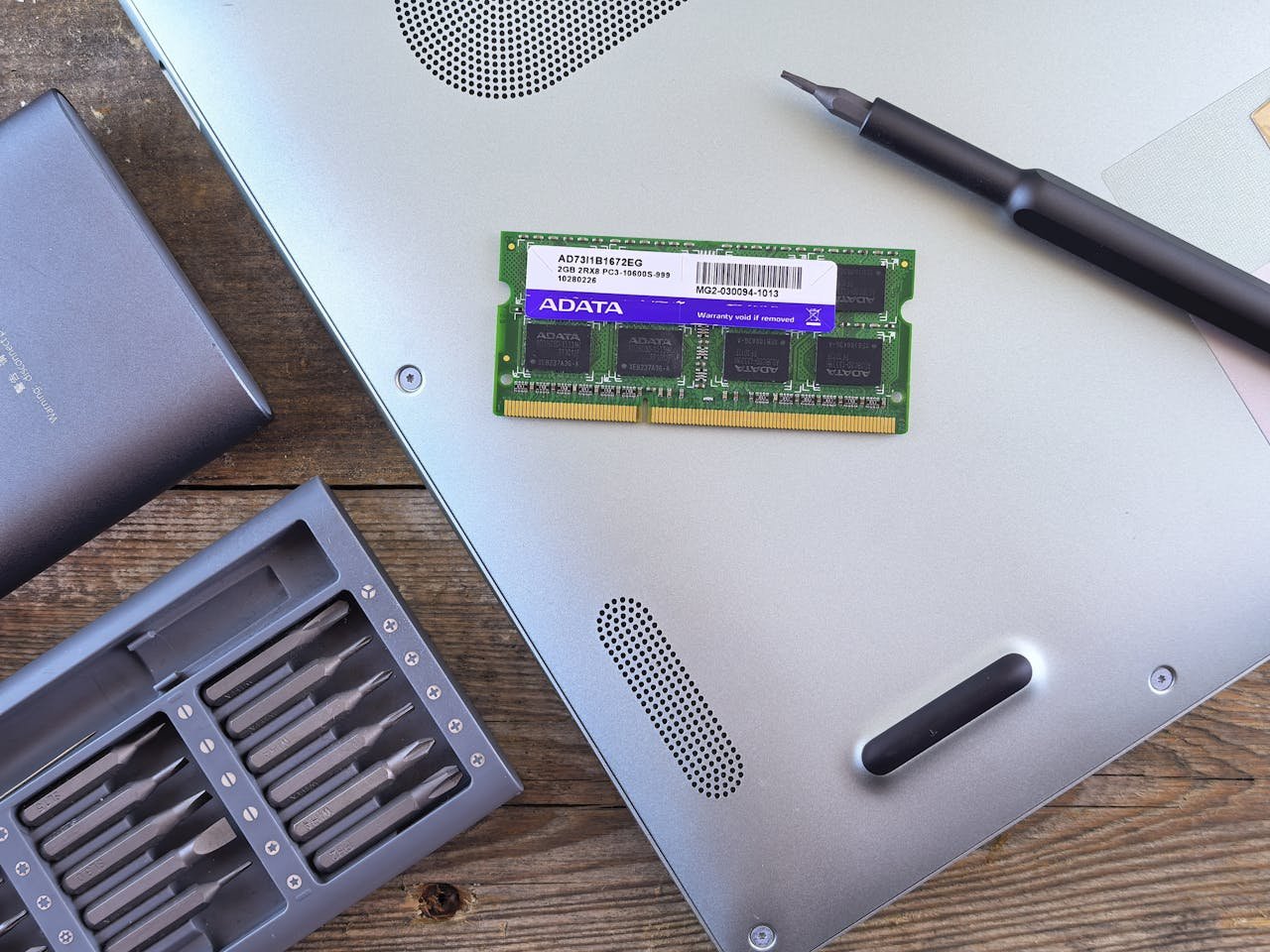
Vents are choked by dust, fans are cleaned quarterly by canned compressor air, and thermals are regained. Raise laptops on stands to allow air to flow in order to avoid throttle. Windows Power plan to High performance (settings power); Mac energy saver deselects sleep proxies. Defrag HDDs once every month (SSD not required); TRIM SSDs through Optimize Drives. External cooling pads lower temperatures 10-15 o C.
Browser and App Habits for Daily Speed
Use other lightweight browsers such as Firefox in case Chrome is slow. Pin favourable applications to taskbars/docks. Turn off visual effects: Windows Sys Properties > Advanced > Performance settings > Adjust to best performance. Mac decrease transparency/motion in Accessibility.
Compounding benefits are gained in terms of maintenance, such as a weekly clean, monthly scans, quarterly hardware inspections. Test benchmarks using UserBenchmark or Geekbench before and after. Laptops wake up like the dead- Windows 10-year-olds are fast now. Good things come to those who wait; no hardware requirements.